
Guides and Tutorials
Adding Multi-Line Items
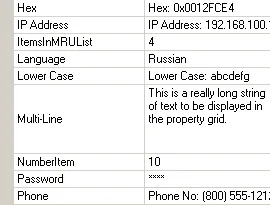
Each property grid item can display multiple lines of text. To enable multi-line support, use the SetMultiLinesCount method of the item to specify a number greater than 1.
VariableItemsHeight must also be True to see multi-line text values in the property grid.
To specify that only one line of text can be displayed (default), set the multi-line count to 1.
Start by adding a category to the property grid.
CXTPPropertyGridItem* pMetrics = m_wndPropertyGrid.AddCategory(_T("Custom Metrics"));
Now enable multi-line items by setting SetVariableItemsHeight to TRUE.
m_wndPropertyGrid.SetVariableItemsHeight(TRUE);
Then add a PropertyItemString item with the multi-line text. Text will wrap if too long to display in the item. You can use line breaks and carriage returns to specify exactly where the line will break.
CXTPPropertyGridItem* pItem =
    pMetrics->AddChildItem(new CXTPPropertyGridItem(_T("MultiLine"),
    _T("Codejock Software\r\n205 N. Hintz Rd.\r\n
        Owosso, Michigan 48867 USA")));
If you will allow your users to edit the multi-line item then you need to specify how the item will be formatted when the item is in edit mode. The SetEditStyle method specifies how the item behaves when the item is in edit mode.
pItem->SetEditStyle(ES_MULTILINE | ES_AUTOVSCROLL);
Finally you must set how many lines the item will be. The item will always be the number of lines in SetMultiLinesCount regardless of how many lines of text there are.
pItem->SetMultiLinesCount(5);
User Comments
No comments yet, sign in to comment.